Make treatment choices clear
Explain the difference between a facial, a body treatment and a longer ritual. Clients should understand the treatment and the time reserved before they book.
Guests may arrive for a short facial or settle in for a longer body treatment. Keep the treatment, therapist and appointment length clear from the moment they book, so reception has a useful view of the spa day.

Explain the difference between a facial, a body treatment and a longer ritual. Clients should understand the treatment and the time reserved before they book.
Connect each treatment to the team members who provide it. Keep their working hours realistic so the appointment menu reflects who is available.
Review the treatment diary and share arrival guidance in your service descriptions. Arrange any preparation or suitability discussion directly with the client.
Organise facials, body treatments and longer rituals into service categories. Describe what each visit includes and give it an appropriate duration and price, helping guests choose without working through the menu over the phone.
View feature: Turn a varied treatment menu into clear booking choicesPricing and duration
A guest chooses a named treatment and reads what is included. Separate a short facial from a full body ritual so the choice matches the experience you actually provide.
The guest selects an available therapist and time. Include the full appointment length in your settings and explain how early they should arrive for a relaxed start.
The client reviews the selected service or space, date, time and price, then provides their contact details. Clear descriptions help them arrive knowing what they have booked and which location to visit.
When online payments are enabled, collect the deposit or full amount required by your booking settings. Your team can also handle payment from the calendar, including a payment link for a client who is arranging the visit with you.
Start with the treatment names, appointment lengths and assigned therapists. This gives reception a practical overview when welcoming guests or answering availability enquiries.
For a return visit, look up previous bookings and discuss the next treatment. Coordinate any shared treatment rooms or equipment through your own operating process.
Illustrative example
Example booking day
| Time | Booking |
|---|---|
| 09:00 | Express facial |
| 11:00 | Body treatment |
| 14:00 | Relaxation ritual |
Assign the treatments each therapist offers. Keep profiles and branch assignments together so guests can select a suitable provider for their chosen visit.
View feature: Connect treatments with your therapistsReview appointments by therapist and branch. Shorter facials and longer rituals have their own booking lengths, making it easier to see how the day is arranged.
View feature: Give reception a view of the whole dayShare a booking page where guests can browse treatment descriptions, durations and prices before choosing their therapist and time. The same menu works for new visitors and returning guests.
View feature: Let guests arrange their visit onlineBring payment into the same workflow as the booking. Choose how you collect money for your services or space hire, and explain the payment arrangements before the client commits.
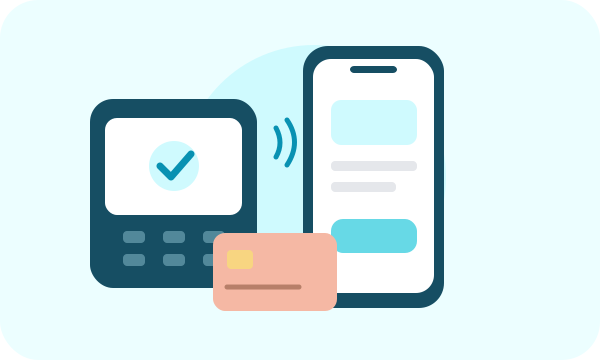
Let clients pay a deposit or the full booking amount through your online booking portal. State what the payment covers so clients understand the amount they are paying before their visit.
Use a supported Stripe Terminal smart reader to collect an in-person card payment for a booking. Reader availability depends on your country and Stripe setup; see the device guide before buying hardware.
Show a payment QR code for the client to scan, or send the payment link by SMS or email. The client opens checkout on their own device, making it useful both at reception and when arranging payment before arrival.
Start with the bookings you handle most often. A clear menu and realistic availability help clients make the right choice and give your team a consistent place to manage requests.
Review the client-facing names, descriptions, location, available times and payment settings. Share the booking link from your website and customer communications, and keep the details up to date as your offering changes.
Create a service describing everything included in the visit, with a duration and price for the complete appointment. Assign it to the therapists who provide that service.
Yes. Set up branches and their opening hours, assign therapists to their locations and review appointments by branch. Guests can choose the location that suits them.
Yes. Give each service or service option its own duration and price so a short treatment and a longer visit are easy to distinguish.
Explain that requirement in the description and offer a consultation service where appropriate. Your team remains responsible for deciding which treatment is suitable.
Yes. Share your WebbyBooky booking portal link from your existing website so clients can choose a service, provider and available time. Keep your business information on your website and use the portal for the booking journey.
With payments configured, you can collect a deposit or full payment online and take booking payments through the calendar. In-person options include supported Stripe Terminal readers and a QR payment page; links can also be sent by SMS or email. Available options depend on your payment setup.
Build your service or space menu, set your availability, and give clients a clear way to book. Start with your everyday workflow and expand as your business grows.