Client online booking portals for appointments and rooms
Make booking quick and easy for your clients. Let them choose a service, team member, and appointment time online, with no customer account needed.
Your clients are a few clicks away from booking!
Smooth booking process, fast and easy.
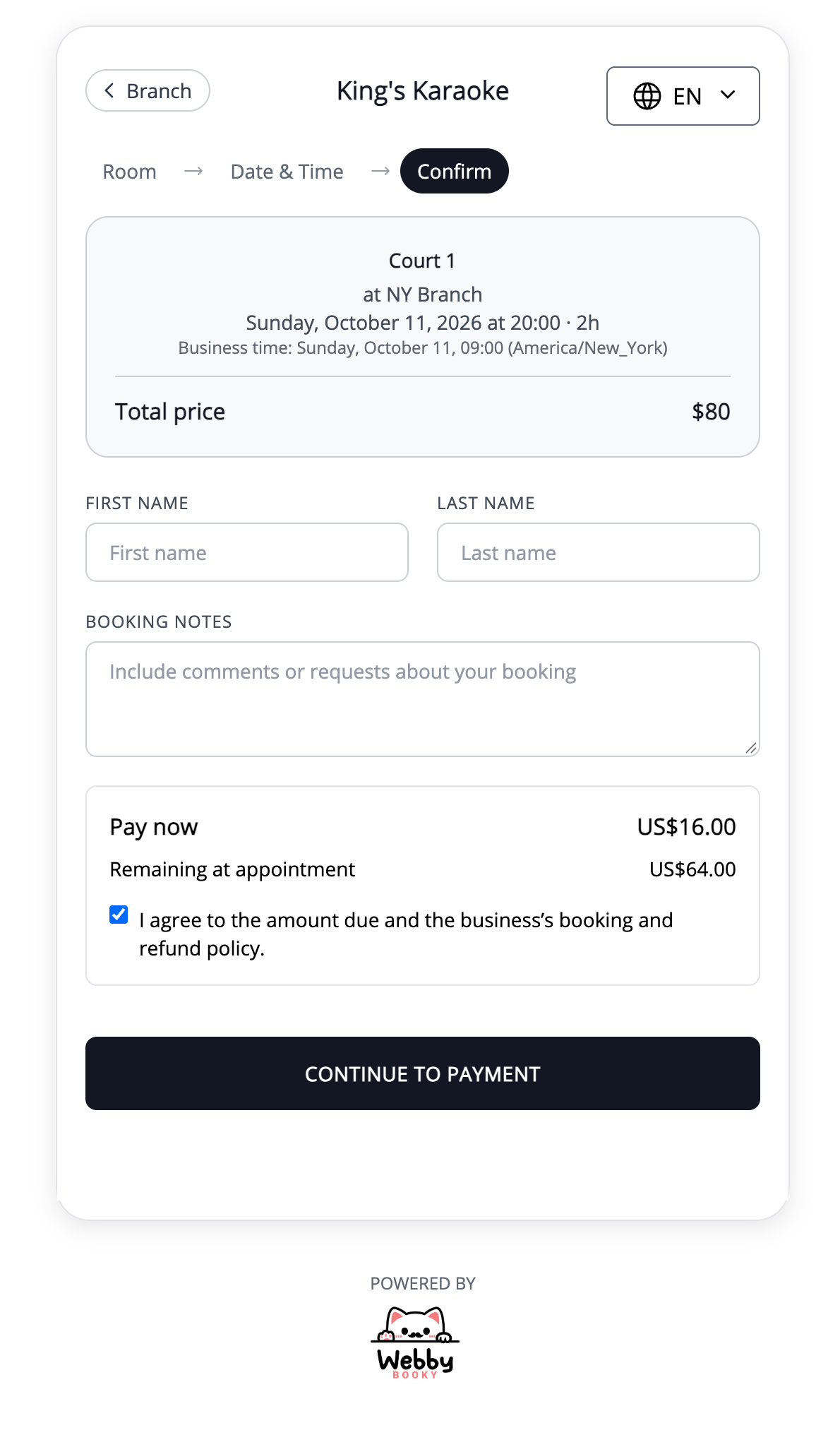
Choose a branch, pick a team member and service, select date & time, provide your details, and the appointment is booked!
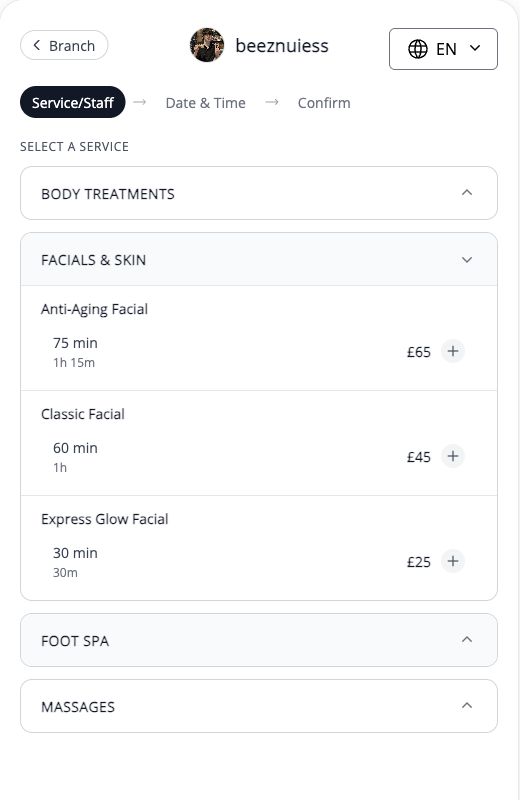
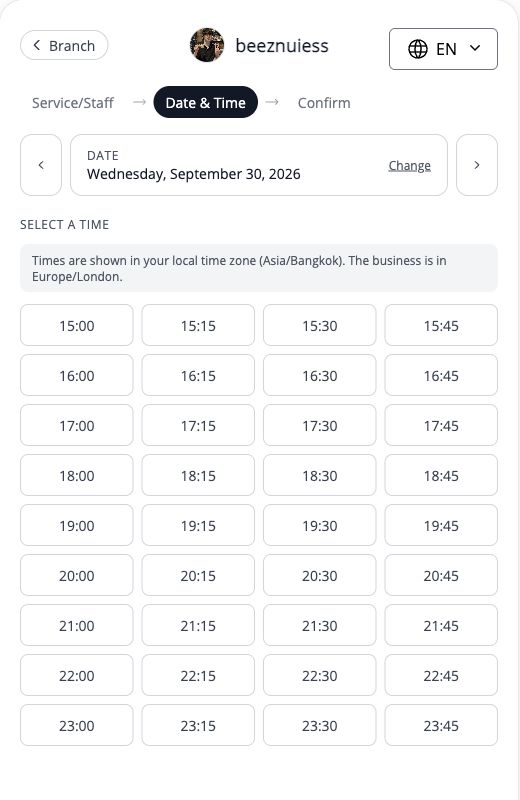
Excellent client experience
Our simple and frustration-free online booking is a great way to start the client experience.
We make booking simple: no passwords, no accounts—just name and contact info!
Get notified of all new bookings
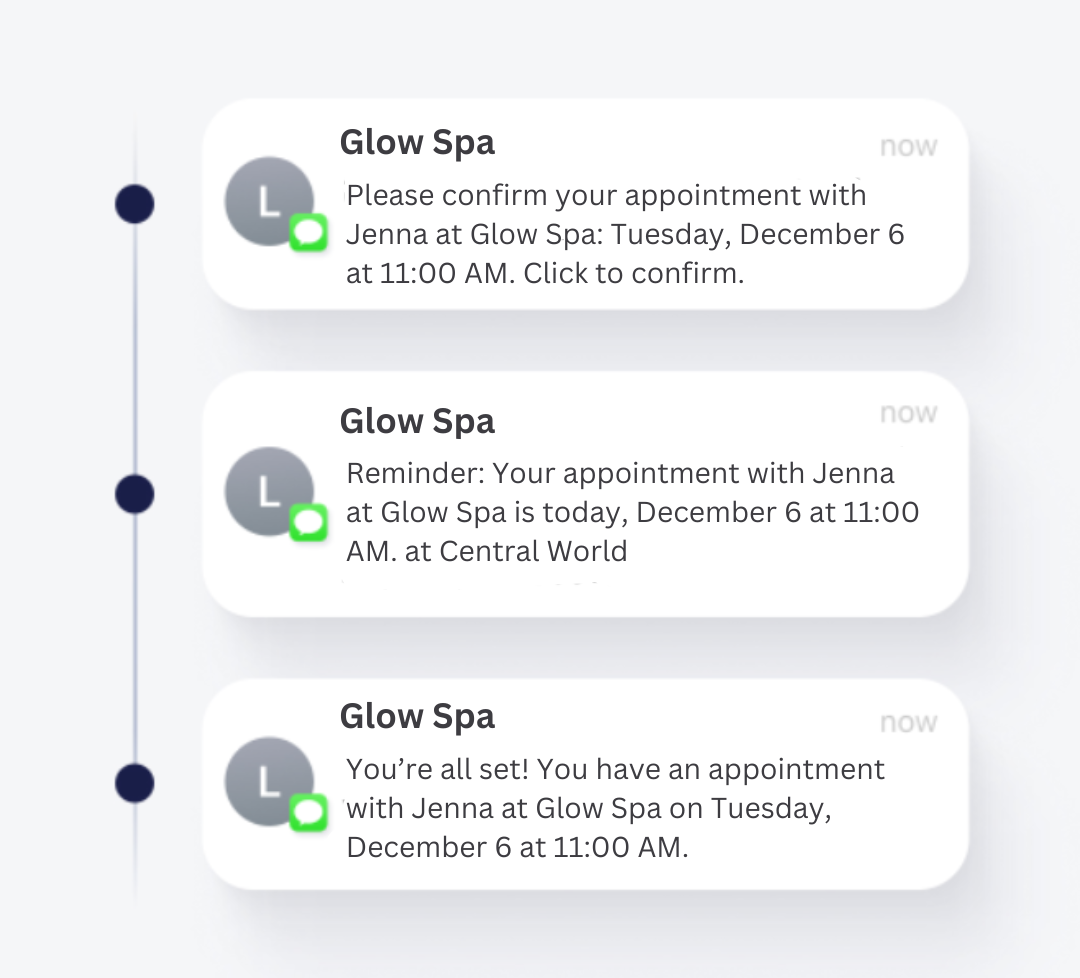
Easily keep track of your new bookings by enabling email and SMS notifications.
When notifications are turned on you'll be notified immediately when a new appointment is booked through online booking.
Accept deposits or full payment online
Let clients pay a deposit or the full booking amount through your client booking portal as part of their online booking.
Choose a deposit to collect part of the amount upfront, or take full payment when clients book. Bring booking and payment together in one convenient flow.
Turn an enquiry into a clear booking journey
Your booking portal gives clients a place to choose what they need and find an available time. The information you set up for branches, services, providers and rooms shapes that experience. Clear choices help customers book while your team is occupied with other work.
Give customers the right starting point
Share the booking link from your website and usual customer communications. Explain whether the customer is booking an appointment with a provider or reserving a space, especially if your business offers both.
Let the client choose from your configured options
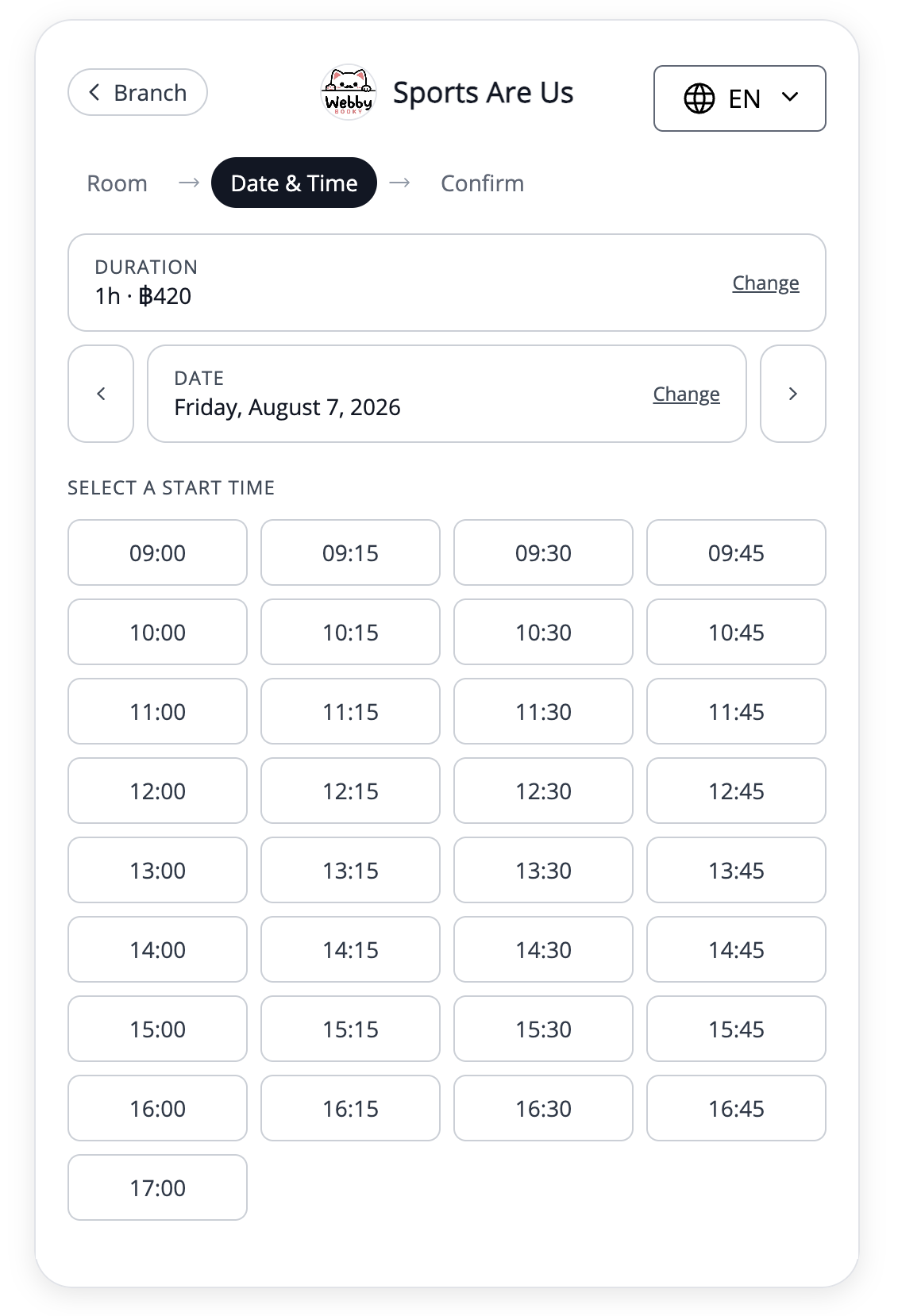
For an appointment, the client selects the relevant branch, provider, service and available date and time. For a room, the journey centres on the space, permitted duration and available start time. Keep descriptions specific to each choice.
Explain the payment and arrival arrangements
Customers provide their contact details and complete the booking flow. If online payments are enabled, the payment step follows your configured deposit or full-payment requirement. Explain what the price includes and where the customer should arrive.
Worked example
A website visitor books a salon appointment
The visitor follows a booking link, chooses the branch and a suitable stylist, then selects a cut-and-finish appointment. They choose an available time and provide their details. Your descriptions should answer practical questions before this point, such as the visit length and what is included.
| Client decision | Information to make clear |
|---|---|
| Which service? | Name, inclusions, duration and price |
| Who and where? | Provider and branch details |
| How do I pay? | Configured payment requirement |
Illustrative setup, not a live booking or customer result. Adapt the names, times and prices to your business.
Before you share your booking page
- Share the client booking URL, not an admin link.
- Check descriptions, providers and branch information.
- Explain the amount due and what it covers.
- Give customers a contact option for unusual requests.
Questions about this workflow
Do I need to replace my website?
No. Add a clear booking link to your existing website. Your site can continue to explain your business while WebbyBooky handles the booking journey.
What if a customer needs advice before choosing?
Explain when to contact your team or offer a consultation service. Online booking works best for options that customers can understand and choose confidently.
Continue with a practical guide
How to add a booking link to your existing website
Connect your website to your WebbyBooky booking portal with clear links, useful descriptions and a straightforward client journey.
Read the guideHow to set up online booking for teams and services
Set up your branch, add team members and services, assign who provides each service, and share your client booking page.
Read the guide