How to set up online booking for teams and services
WebbyBooky · Updated 9 October 2026
This guide is for businesses that choose team members and services during setup. Start with a small menu of clearly described services, set their prices and durations, and assign the team members who provide them. You can then prepare a client booking page where clients choose a service, team member and available time.
Team members and services business
1. Choose team members and services during business setup
Choose the team members and services booking type when setting up your business. This is for appointments where a team member provides a service, such as a haircut, massage or private lesson. The business booking type is chosen during setup; room hire uses the separate room booking type.
2. Set up your branch and service menu
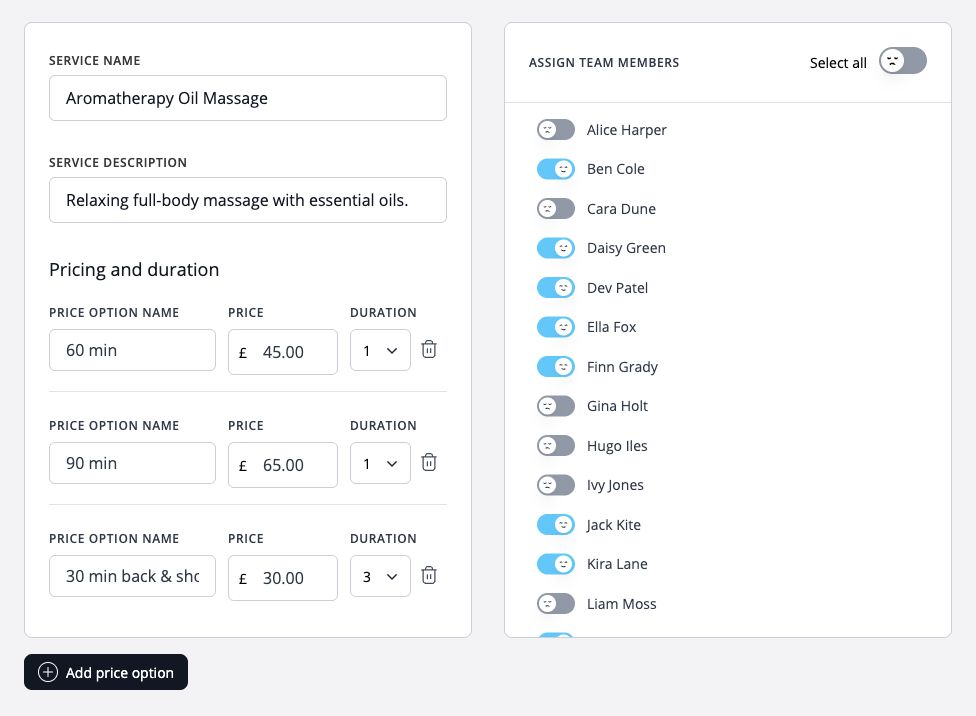
Enter your branch information, then add the services clients can book. Give each service a clear name and description, and organise your menu into categories. Set the price and duration for each option so clients know what they are booking and how much time to allow.
3. Add team members and assign their services
Create your team profiles and assign each team member to the appropriate branch and services. Only assign services they actually provide. Review their active status and availability so the booking page reflects who can take appointments. Give admin access separately to the people who will manage bookings.
4. Decide how booking payments will work
If you want to collect money during online booking, complete your payment setup and choose the supported deposit or full-payment settings that fit your offer. Tell customers what the amount covers before they pay. Payment availability depends on your setup; describe your actual options rather than every possible method.
5. Review the client journey and share the link
Review your client booking page: can clients identify the right branch, choose a service and team member, and find a suitable appointment time? Check service prices, durations and payment instructions, then share the client booking URL from your website and usual communications. Keep the page current when your services, team or availability change.
Worked example
Start with three appointments
A new salon could begin with a 20-minute trim, a 45-minute cut and finish, and a 30-minute consultation. Each option has its own description and price and is assigned only to the stylists who provide it. This makes the first booking page useful without making clients navigate a large unfinished menu.
Illustrative setup, not a live booking or customer result. Adapt the names, times and prices to your business.
Before you share your booking page
- Choose the team members and services booking type.
- Review branch details, service descriptions, prices and durations.
- Check service assignments and availability for each team member.
- Review payment instructions and share the client booking URL.