Client booking system, records and history
Keep client contact details, upcoming appointments and past bookings together so your team can find the information needed for the next visit.
Client records
Maintain detailed client profiles, including past appointments and preferences.
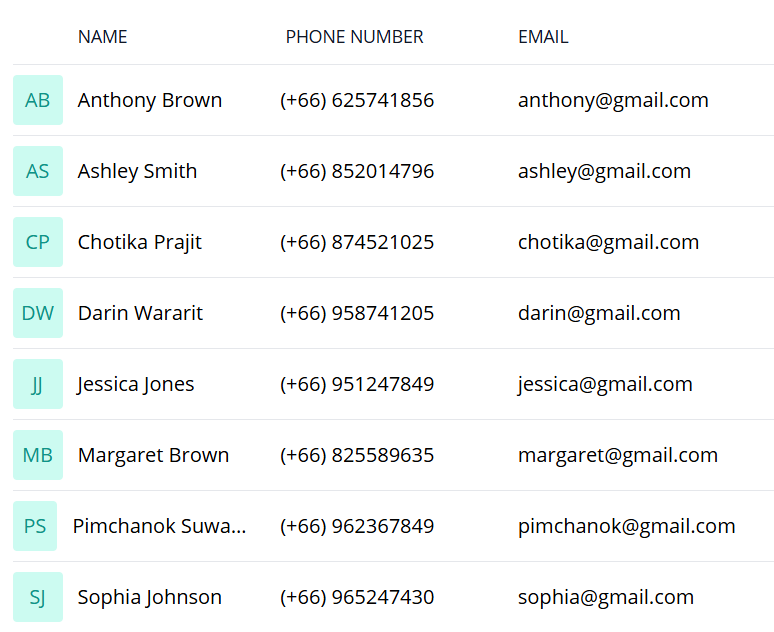
Add a client and their contact details
Seamlessly add clients to your database and begin offering personalized services right away.
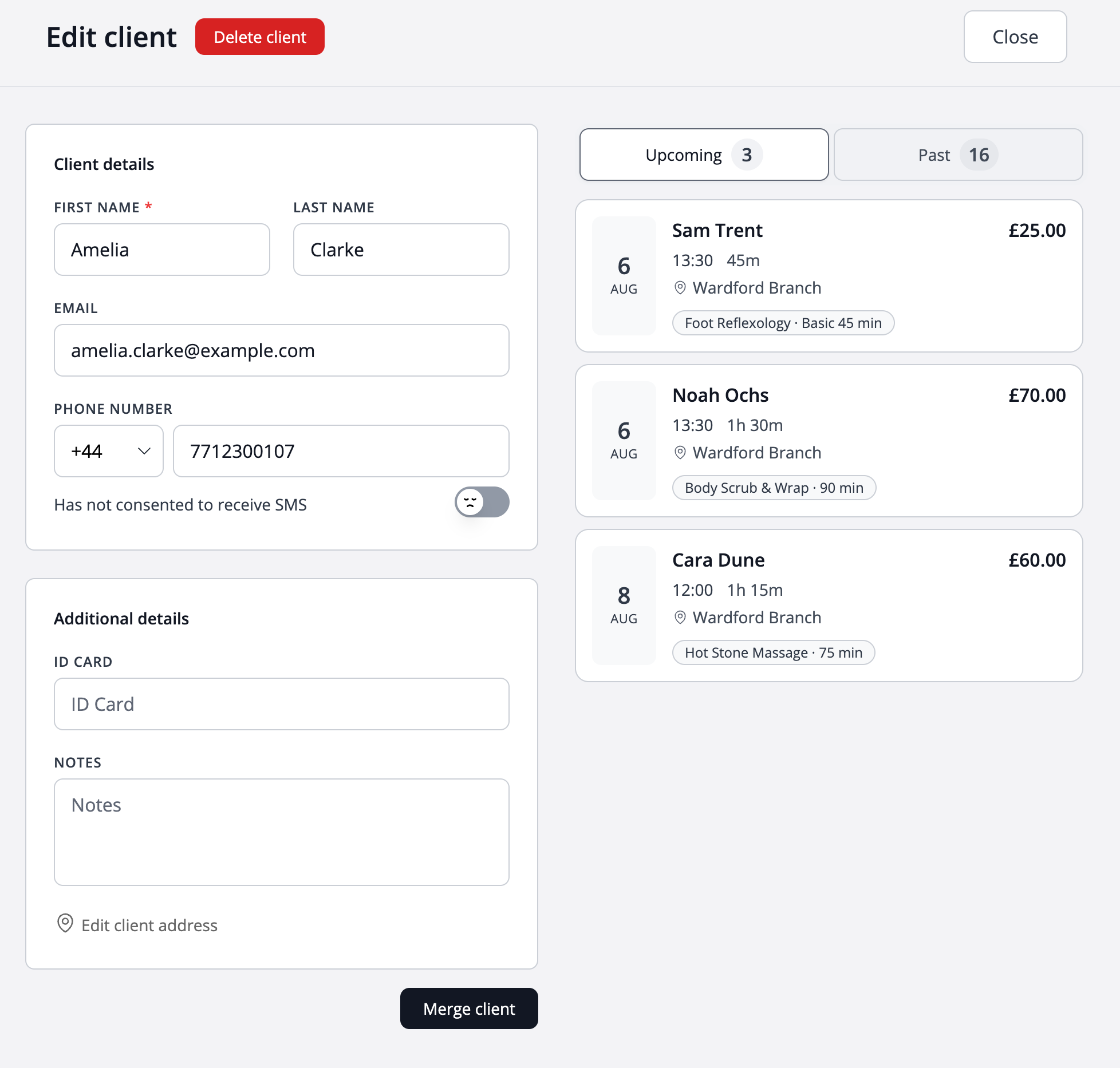
Stay ahead with upcoming appointments
Quickly access your clients' upcoming appointments, so you're always one step ahead and reduce last-minute scheduling conflicts.
Entures that you're always prepared to provide seamless, top-quality service for every client.
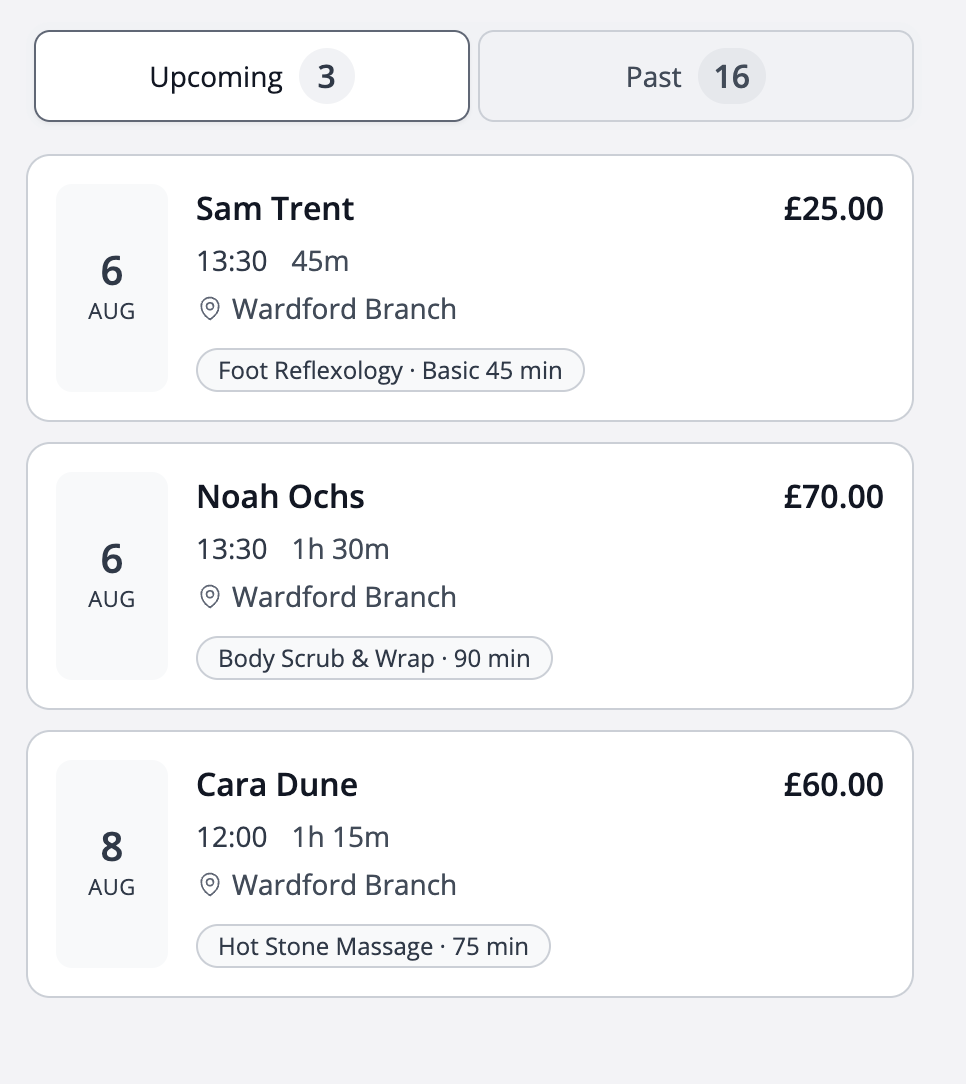
Detailed appointment history at your fingertips
Access client appointment history effortlessly.
You can quickly find the details you need, including dates, times, services, and branches.
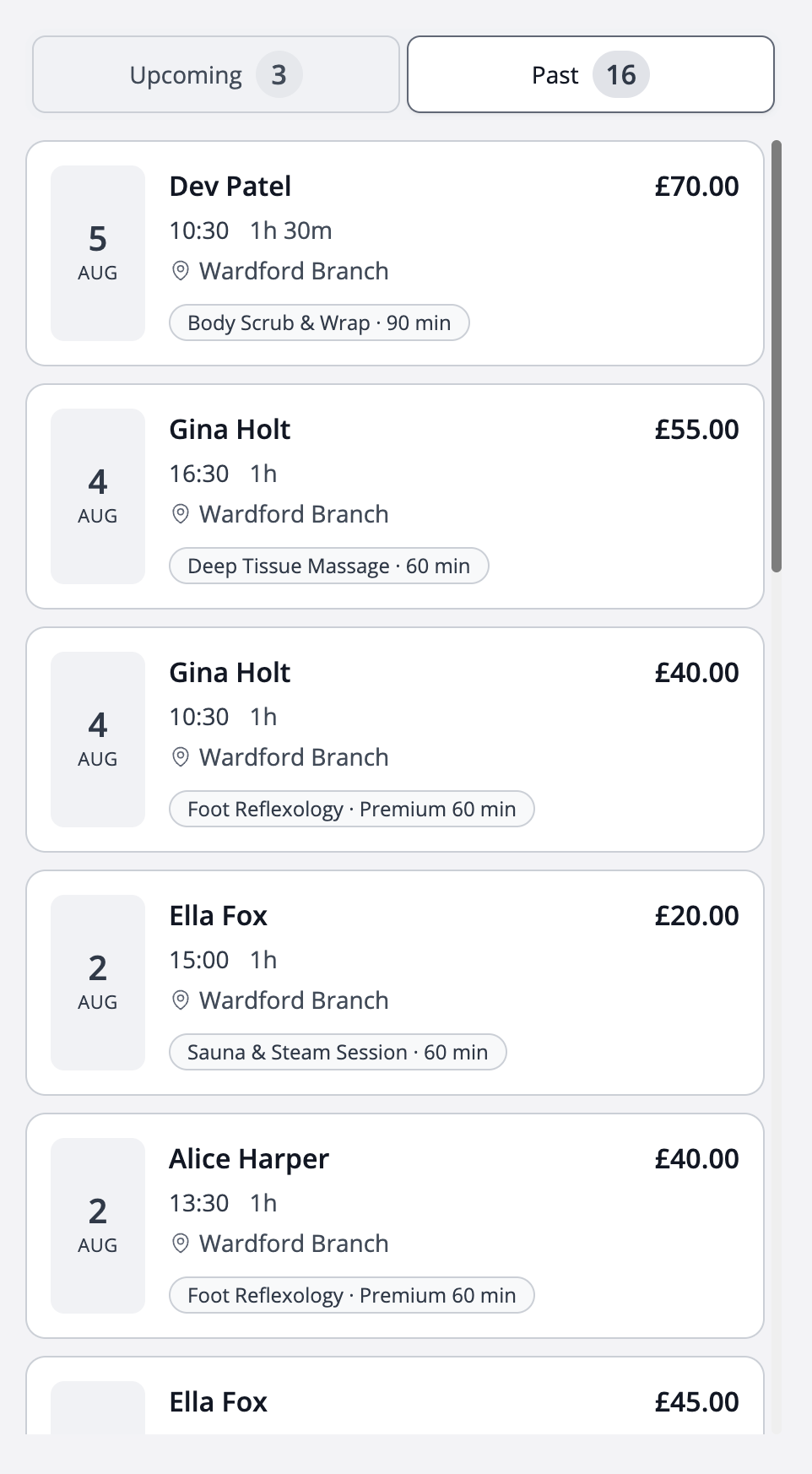
Use client details to make the next conversation easier
When a client calls, your team needs to find the right person and understand the booking they are discussing. Keep contact details, upcoming visits and past appointments together so each conversation starts with the information already available.
Find the right record
Use the client list and contact information to identify the person before changing a booking. For a new client, add the details your business needs and check the spelling and contact channel together.
Check the upcoming appointment
Review the booked service or room, date and time before discussing changes. Confirm the intended booking rather than assuming the latest enquiry refers to the next visit.
Use history as context for a return visit
Look at previous appointments when a client asks for the same service again. Confirm the current option, provider and price before arranging a new visit, because the menu or team may have changed since last time.
Worked example
A returning client asks for another appointment
Reception finds the client record, checks the earlier service, and offers a new appointment based on current availability. The history supports the conversation; it does not replace confirming what the client wants today.
| Look at | Use it to |
|---|---|
| Contact details | Confirm you have the correct client |
| Upcoming booking | Discuss the correct date and time |
| Past appointments | Understand the previous service |
Illustrative setup, not a live booking or customer result. Adapt the names, times and prices to your business.
Before you share your booking page
- Keep contact details accurate and relevant.
- Confirm the client before discussing or changing their booking.
- Check current services and prices for return visits.
- Keep specialist or sensitive records in the appropriate system.
Questions about this workflow
Does booking history replace specialist records?
Use booking history for scheduling and customer service. Clinical notes, training programmes and other specialist records need the tools and procedures appropriate to your business.
Can reception add a new client?
An admin with the relevant client-management permission can add a client record. Collect the contact information needed for the booking and check it with the client.
Continue with a practical guide
How to set up online booking for teams and services
Set up your branch, add team members and services, assign who provides each service, and share your client booking page.
Read the guideCollect booking payments by card reader, QR code or link
Choose a practical booking payment route at reception or before arrival, using supported Terminal readers and QR, SMS or email links.
Read the guide