Separate the reason for the visit
Give check-ups, cleaning and consultation visits distinct names and appointment lengths so reception can see what has been booked.
Reception needs to distinguish a check-up from a longer hygiene visit before finding a time. WebbyBooky helps organise the appointment side of your practice, bringing visit types, provider schedules and bookings into one calendar.

Give check-ups, cleaning and consultation visits distinct names and appointment lengths so reception can see what has been booked.
Assign services to the team members who provide them and keep the working diary up to date.
Let patients book the routine appointment types you make available online, while directing urgent or unclear enquiries to the clinic.
List the appointment types your practice offers for booking, with descriptions and durations set by your team. Separate routine visits from initial consultations so patients can identify a suitable starting point when arranging a visit.
View feature: A clear appointment menu for patientsPricing and duration
The patient selects an appointment type with a clear description. Explain whether it is a routine visit, a new-patient consultation or an appointment that needs to be arranged by reception.
They choose an available provider and time for the selected appointment. Your clinic remains responsible for triage and deciding the treatment and time needed.
The client reviews the selected service or space, date, time and price, then provides their contact details. Clear descriptions help them arrive knowing what they have booked and which location to visit.
When online payments are enabled, collect the deposit or full amount required by your booking settings. Your team can also handle payment from the calendar, including a payment link for a client who is arranging the visit with you.
Review upcoming visits by appointment type and provider. Use the booking details when patients call to discuss timing or arrange another visit.
Keep booking administration alongside your established dental practice processes. Treatment notes, dental charts and clinical documents should stay in your appropriate clinical system.
Illustrative example
Example booking day
| Time | Booking |
|---|---|
| 09:00 | Routine check-up |
| 11:00 | Cleaning appointment |
| 14:00 | New-patient consultation |
Assign appointment services to the team members who provide them. Different providers can have different service lists, helping patients choose an appropriate person for their selected visit.
View feature: Keep dentists and hygienists organisedSee visit times and booking details by provider and branch. Your team can create or update appointments in the calendar when patients contact the practice.
View feature: Make the reception diary easier to followShare a booking page with your appointment menu, providers and available times. Patients can arrange a visit without waiting for reception to answer the phone.
View feature: Offer online booking for routine visitsBring payment into the same workflow as the booking. Choose how you collect money for your services or space hire, and explain the payment arrangements before the client commits.
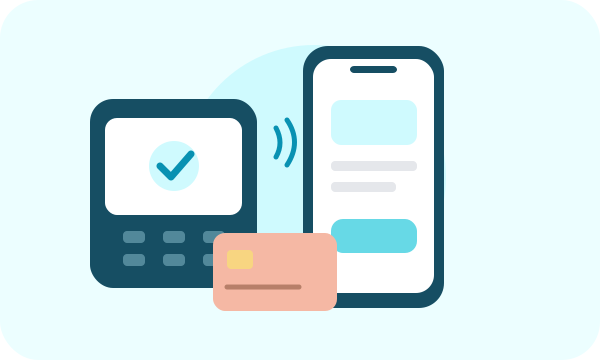
Let clients pay a deposit or the full booking amount through your online booking portal. State what the payment covers so clients understand the amount they are paying before their visit.
Use a supported Stripe Terminal smart reader to collect an in-person card payment for a booking. Reader availability depends on your country and Stripe setup; see the device guide before buying hardware.
Show a payment QR code for the client to scan, or send the payment link by SMS or email. The client opens checkout on their own device, making it useful both at reception and when arranging payment before arrival.
Start with the bookings you handle most often. A clear menu and realistic availability help clients make the right choice and give your team a consistent place to manage requests.
Review the client-facing names, descriptions, location, available times and payment settings. Share the booking link from your website and customer communications, and keep the details up to date as your offering changes.
Yes. Your practice sets each service’s description, duration and pricing options. The example lengths shown here are illustrative; configure them to match your own appointment policy.
This page covers appointment scheduling, provider management and booking details. Dental charting, clinical records and treatment planning remain part of your practice’s separate clinical workflow.
Your clinic decides which appointments are appropriate. Start with clearly defined routine visits and consultations; arrange complex or urgent cases through your normal clinical process.
Use it for the scheduling and payment workflows described here. It is not presented as a replacement for dental charting, clinical records, insurance claims or treatment planning.
Yes. Share your WebbyBooky booking portal link from your existing website so clients can choose a service, provider and available time. Keep your business information on your website and use the portal for the booking journey.
With payments configured, you can collect a deposit or full payment online and take booking payments through the calendar. In-person options include supported Stripe Terminal readers and a QR payment page; links can also be sent by SMS or email. Available options depend on your payment setup.
Build your service or space menu, set your availability, and give clients a clear way to book. Start with your everyday workflow and expand as your business grows.