Make private spaces easy to compare
Describe meeting rooms, private offices and other independently reservable spaces, including the working environment and facilities.
Some customers need a quiet desk for an hour; others need a private workspace for the afternoon. Make each reservable space easy to identify and keep its availability visible, so your front desk can focus on welcoming people.
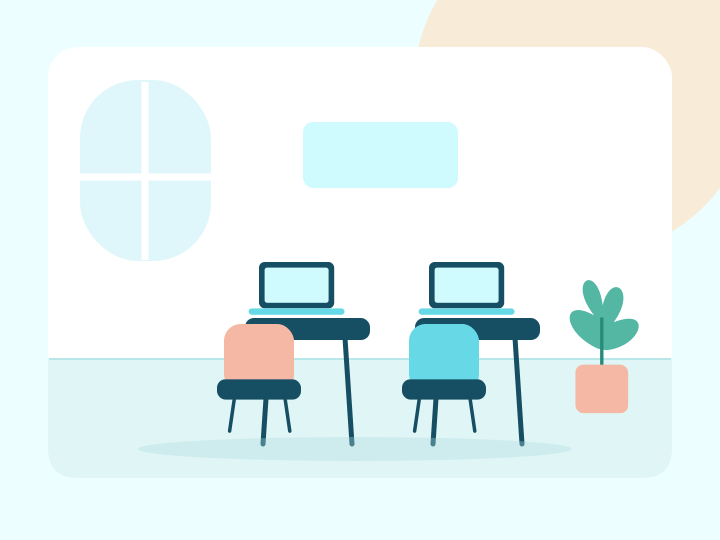
Describe meeting rooms, private offices and other independently reservable spaces, including the working environment and facilities.
Publish room rates and permitted booking lengths so customers know the cost and time commitment before reserving.
A shared room calendar helps the host answer availability questions while welcoming people already using the space.
Set up individually reservable desks, booths or private offices as spaces. Describe the working environment and included facilities, then choose the hourly rate and permitted booking lengths for each one.
View feature: Give each desk or workspace its own bookingPricing & booking
A customer chooses a private space that fits the way they need to work. Explain desk layout, internet access and any facilities included in that specific room hire.
They choose a duration and start time from the room’s availability. State how check-in works and when access ends so occasional visitors know what to expect.
The client reviews the selected service or space, date, time and price, then provides their contact details. Clear descriptions help them arrive knowing what they have booked and which location to visit.
When online payments are enabled, collect the deposit or full amount required by your booking settings. Your team can also handle payment from the calendar, including a payment link for a client who is arranging the visit with you.
Review arrivals and booked rooms at the start of the day. Keep room descriptions accurate as layouts or facilities change.
Use client booking history when a regular customer asks to reserve again. Manage memberships, building access and shared-desk allocation through your existing processes.
Illustrative example
Example booking day
| Time | Booking |
|---|---|
| 09:00 | Private office |
| 11:00 | Meeting room |
| 14:00 | Quiet work room |
Give each bookable space a clear name and its own calendar. Your team can see who has reserved a particular desk or office and how long they are staying.
View feature: Keep desks and private offices distinctCustomers choose a space, duration and available time on your booking page. Clear room details help a visitor find a quiet place to work or a private space for a call.
View feature: Make occasional workspace hire simpleGroup your spaces by branch and manage each site’s opening hours. Customers can select the location they need, while your team reviews that site’s reservations.
View feature: Organise spaces across coworking sitesBring payment into the same workflow as the booking. Choose how you collect money for your services or space hire, and explain the payment arrangements before the client commits.
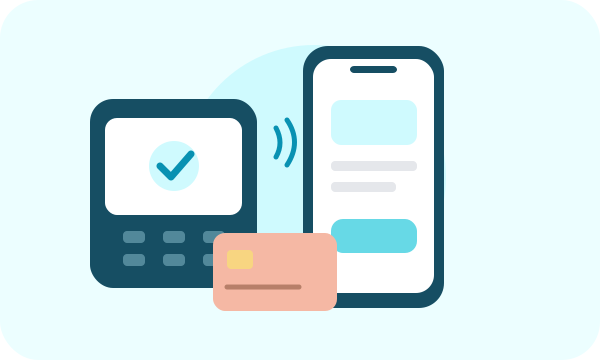
Let clients pay a deposit or the full booking amount through your online booking portal. State what the payment covers so clients understand the amount they are paying before their visit.
Use a supported Stripe Terminal smart reader to collect an in-person card payment for a booking. Reader availability depends on your country and Stripe setup; see the device guide before buying hardware.
Show a payment QR code for the client to scan, or send the payment link by SMS or email. The client opens checkout on their own device, making it useful both at reception and when arranging payment before arrival.
Start with the bookings you handle most often. A clear menu and realistic availability help clients make the right choice and give your team a consistent place to manage requests.
Review the client-facing names, descriptions, location, available times and payment settings. Share the booking link from your website and customer communications, and keep the details up to date as your offering changes.
Create each independently bookable desk as its own space. This page describes reservations for specific spaces, so one desk’s booking does not represent all the desks in your office.
Yes. Add the office as a space and set its hourly rate and duration limits. Visitors choose an available time and a booking length within those limits.
This workflow focuses on reserving individual spaces by time. It does not describe membership billing, access-control integrations or pooled desk inventory.
You can share the booking page for the spaces you make available. Explain eligibility and access rules in the room description so visitors understand your venue’s conditions.
Yes. Share your room booking page so customers can select a space, choose a duration within its limits and find an available start time. Write clear room descriptions and arrival information so customers know what the hire includes.
Configure online booking payments to collect a deposit or full amount where offered. Staff can also collect booking payments through the calendar using payment links, a QR checkout page or a supported Stripe Terminal reader. State the hire conditions and what the payment includes before the customer books.
Build your service or space menu, set your availability, and give clients a clear way to book. Start with your everyday workflow and expand as your business grows.