Choosing deposits or full payment for online bookings
WebbyBooky · Updated 9 October 2026
Choose a payment arrangement that customers can understand before they commit. The useful question is what should be paid at booking and what, if anything, will remain for later. Explain the amount, what it covers and how any balance will be collected.
1. Define the booking price
Start with the service option or room hire being booked. Make the inclusions clear and distinguish the booking price from any additional work that still needs discussion. Avoid presenting an uncertain quote as a fixed-price service.
2. Choose the amount collected online
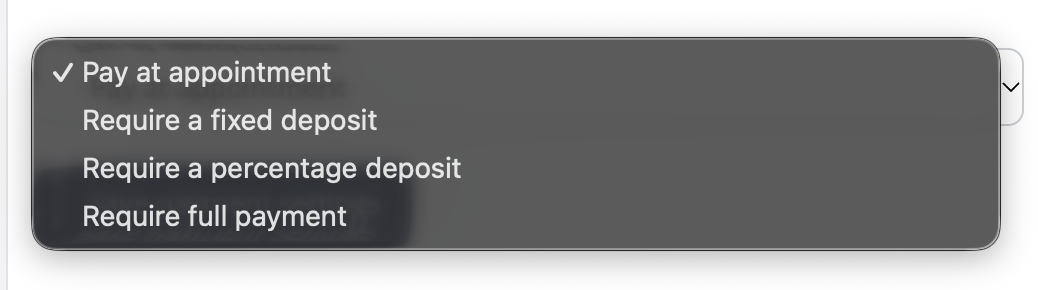
In Stripe payments, open Settings and choose an option under Online booking payments. You can let clients pay at the appointment, require a fixed or percentage deposit, or require full payment. The examples below use an $80 booking to show what is collected now and what remains.
- Pay at appointment
- Collect no payment during online booking. For an $80 booking, the full $80 remains to be paid at the appointment.
- Require a fixed deposit
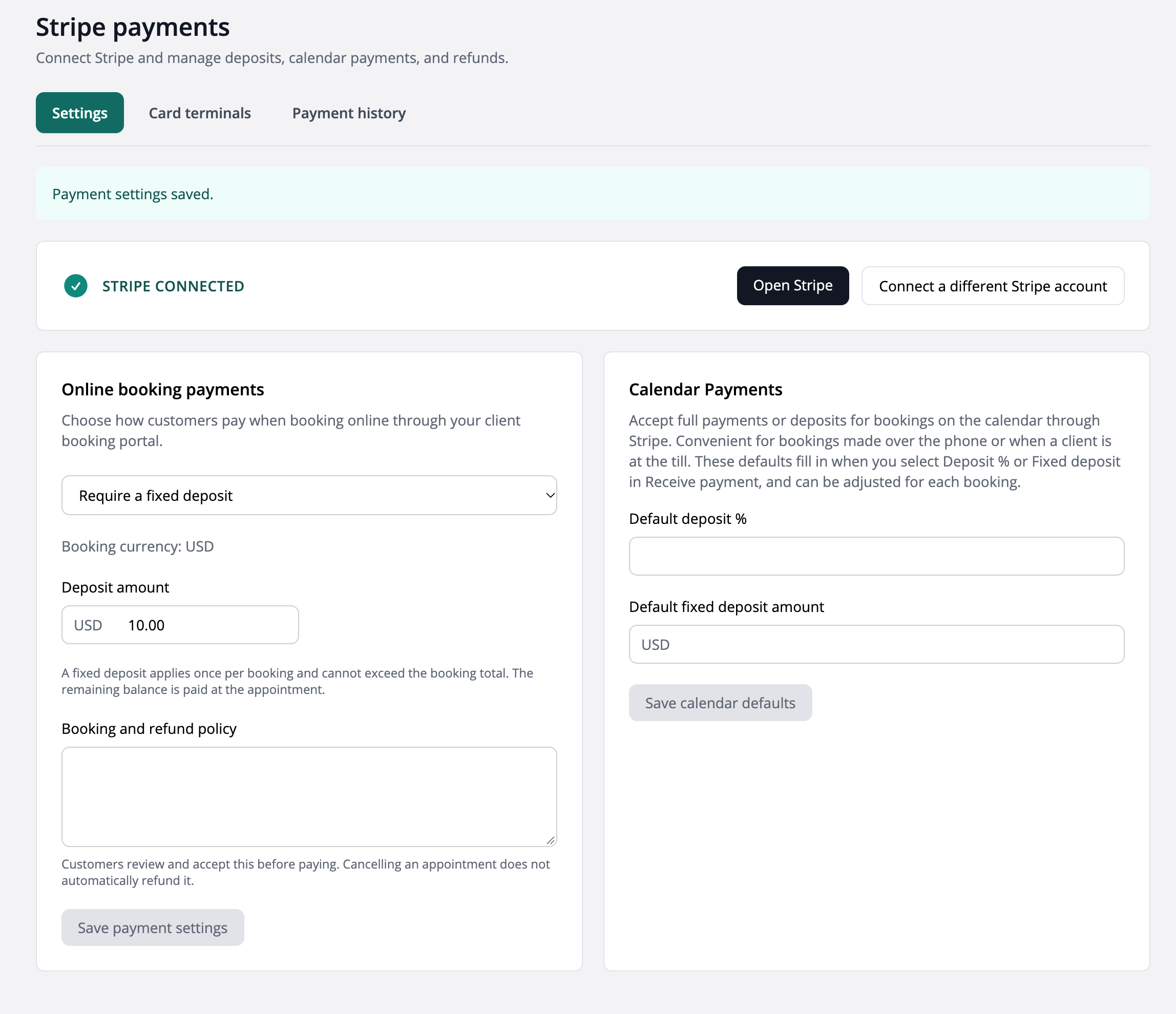
- Set a deposit amount in the booking currency. A $10 deposit on an $80 booking leaves $70 to pay later. The fixed deposit applies once per booking and cannot exceed the booking total.
- Require a percentage deposit
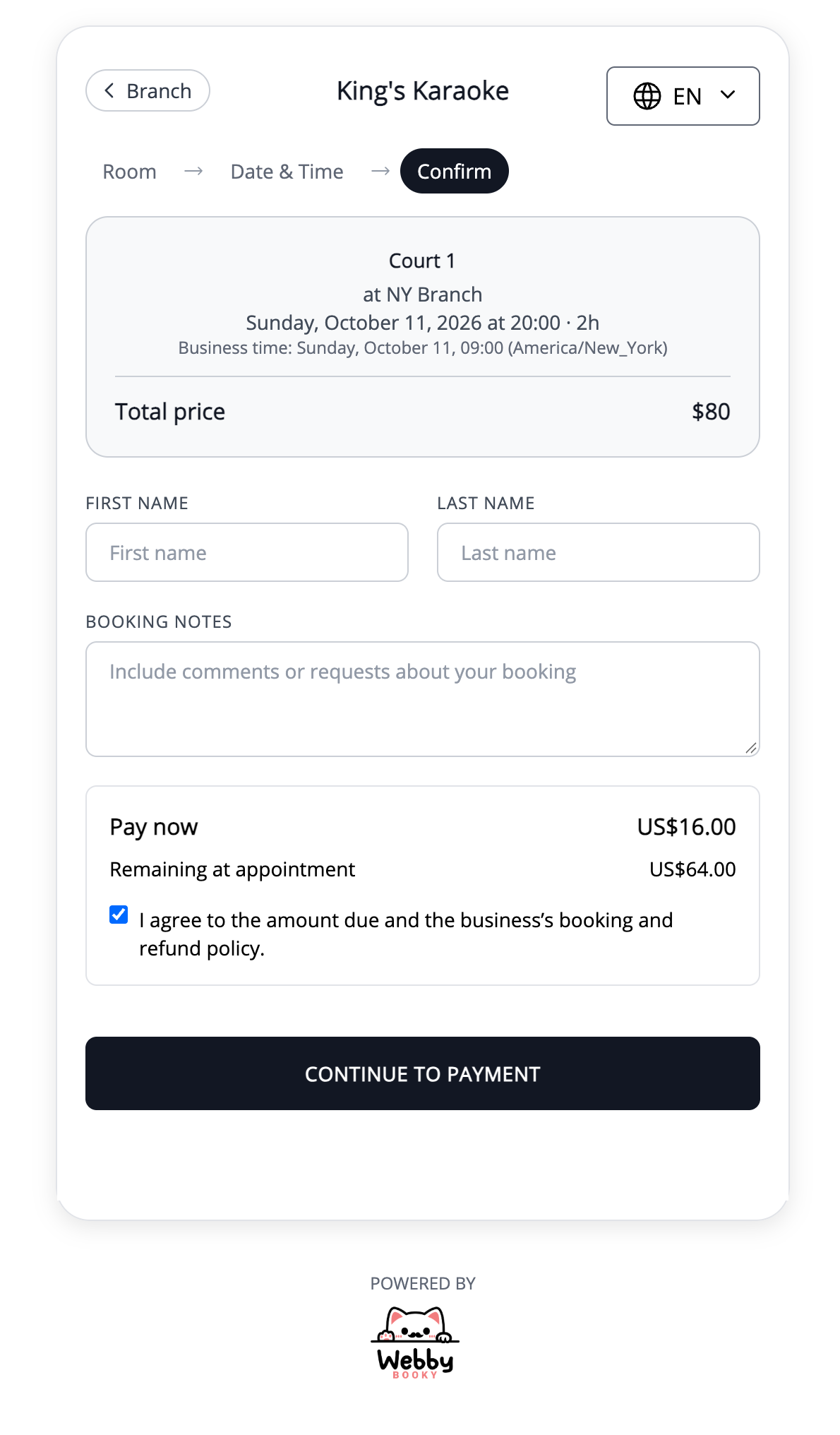
- Collect a percentage of the booking total. A 20% deposit on an $80 booking is $16, leaving $64 to pay later, as shown in the client booking example above.
- Require full payment
- Collect the entire booking amount online. For an $80 booking, the client pays $80 when booking, leaving no balance for that booking unless the agreed amount changes.
3. Explain the arrangement before checkout
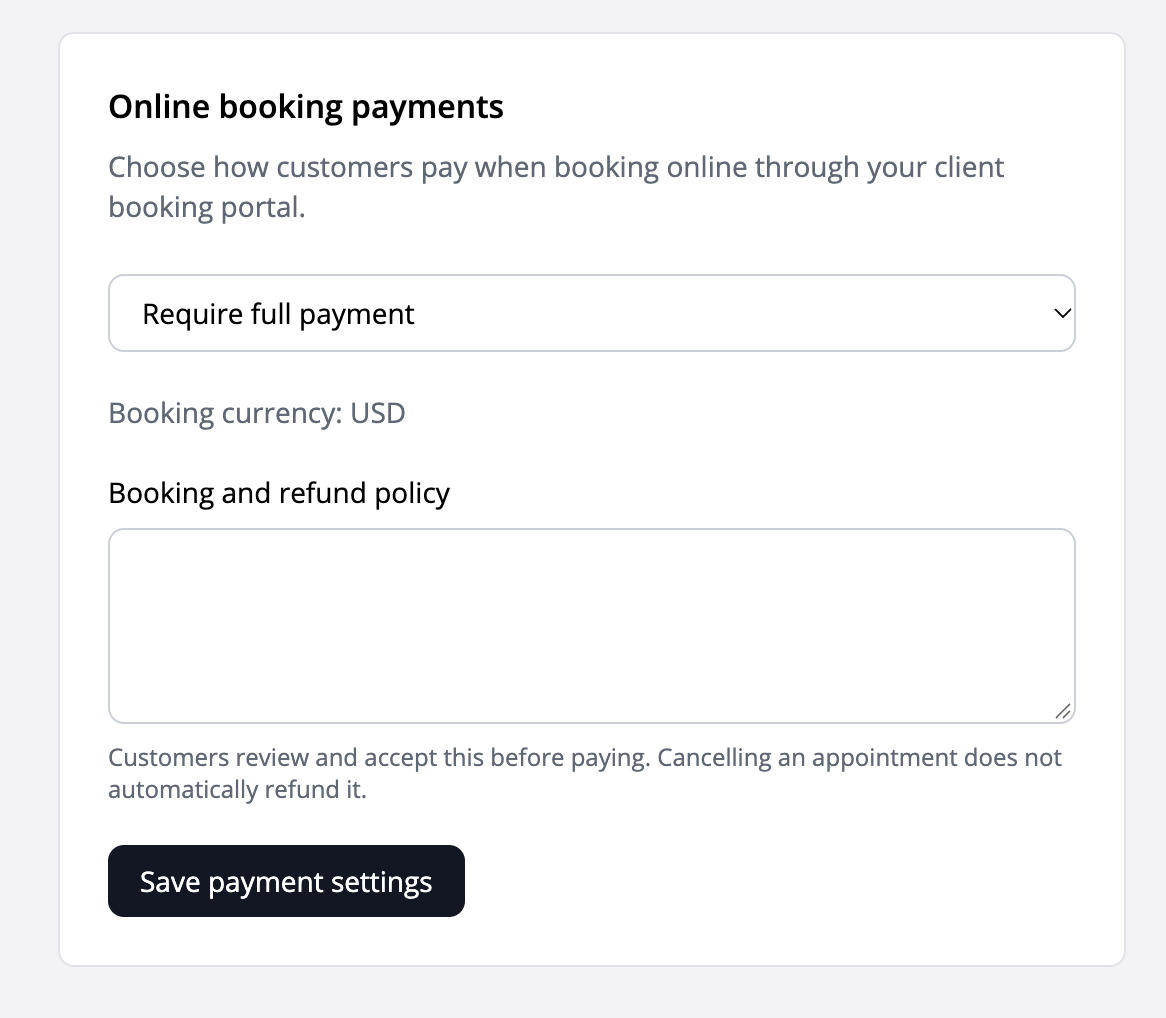
Enter your booking and refund policy in the Online booking payments settings, then save your payment settings. Clients review and accept this policy before paying. Explain what is due now, any remaining balance, and your cancellation and refund arrangements. Cancelling an appointment does not automatically refund its payment.
4. Prepare your team to collect any balance
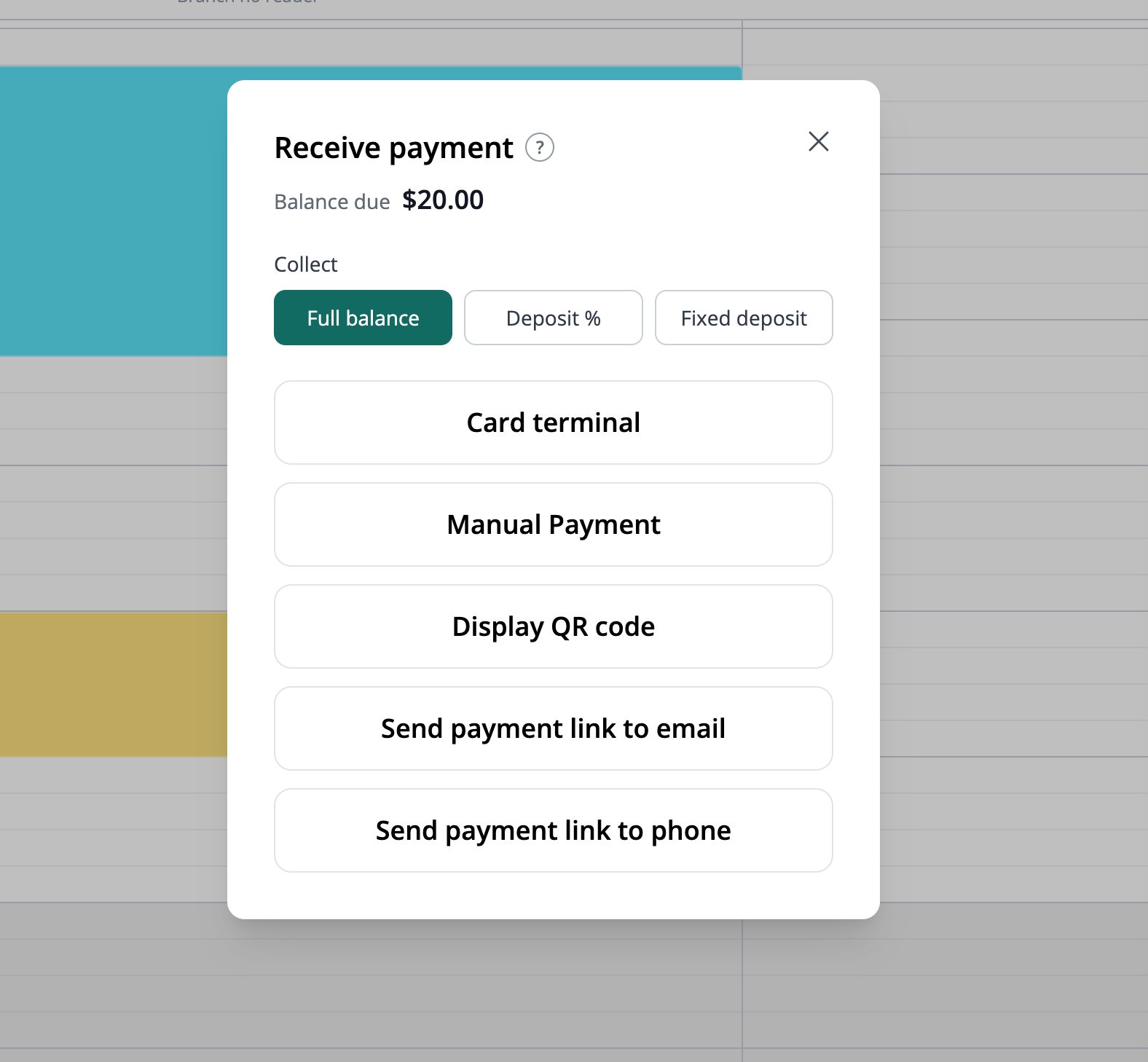
The Stripe payments settings page also has a separate Calendar Payments section. Its default deposit percentage and fixed deposit amount prefill the Deposit % and Fixed deposit options in Receive payment; your team can adjust them for each booking. These defaults are separate from the payment choice for the client booking portal. Before collecting a remaining balance, check what has already been paid and request only the amount still due.
5. Take deposits for phone and in-person bookings too
Clients do not have to book through your client booking portal for you to collect a deposit. Open their booking in the calendar and select Receive payment. Choose Deposit % or Fixed deposit to collect part of the amount, or Full balance to collect the amount still due. Check any previous payments before requesting another payment.
- For a booking made over the phone
- Choose the deposit amount, then send a payment link by email or SMS so the client can pay on their own device. Confirm the payment status after they complete checkout.
- For a client at reception
- Choose the deposit amount, then use a supported card terminal or display a QR code for the client to open checkout on their phone. If you receive payment outside this flow, use Manual Payment to record it.
Worked example
A $100 appointment with $25 collected in advance
In this illustrative example, $25 is collected against a $100 booking, leaving $75 before any agreed changes. Tell the customer how that balance will be paid. The numbers illustrate the difference between a deposit and full payment; they do not specify a required deposit percentage or a refund rule.
Illustrative setup, not a live booking or customer result. Adapt the names, times and prices to your business.
Before you share your booking page
- Explain the booking price and inclusions.
- Make the amount due now and later clear.
- Use your actual payment and cancellation arrangements.
- Check existing payments before requesting a balance.
Explore the related features
- Online booking payments
- In-person and payment link collection
- Service and pricing management
- Room booking